Getting Started with Eco Modding in Visual Studio
Introduction
This guide focuses on setting up a C# modding environment in Visual Studio.
It does not cover adding Unity assets (models, prefabs, UI) to the game. See: From 3D Asset to Working Worktable for that workflow.
This guide won’t teach you how to code or write a mod, but it will help you get everything set up so you’re ready to start learning. Helpful resources are listed at the bottom of this guide, including Helpful Examples for Modding for practical code examples.
Visual Studio 2026 has a completely free to use version called the Community Edition. This guide is written assuming that's the version used.
Have Ready
- A copy of the Eco game installed
- A file explorer and the file-path to
Ecofolder
Tip: Within this folder there's folders likeD3D12andEco_Data. Also, you'll find theEco.exefile here. There are other files and folder here too, but this list is just to help you know what the folder looks like.
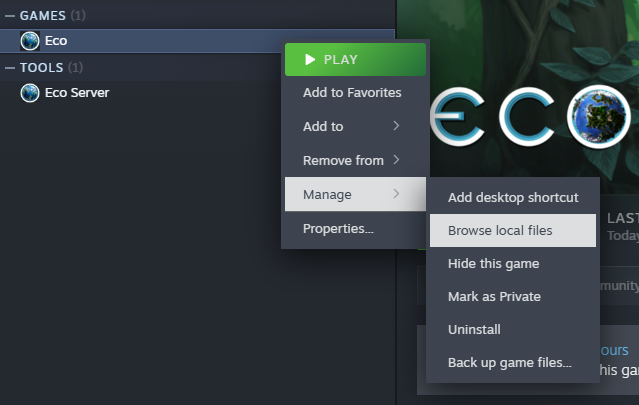
Tip: Find Folder with Steam
Steam users can find the install folder by right-clicking on the game in your Steam Library:
Installing Visual Studio
- Go to
https://visualstudio.microsoft.com/downloads/#visual-studio-community-2026and look for the "Visual Studio Community 2026" download. - Start the download by clicking on the Download button.
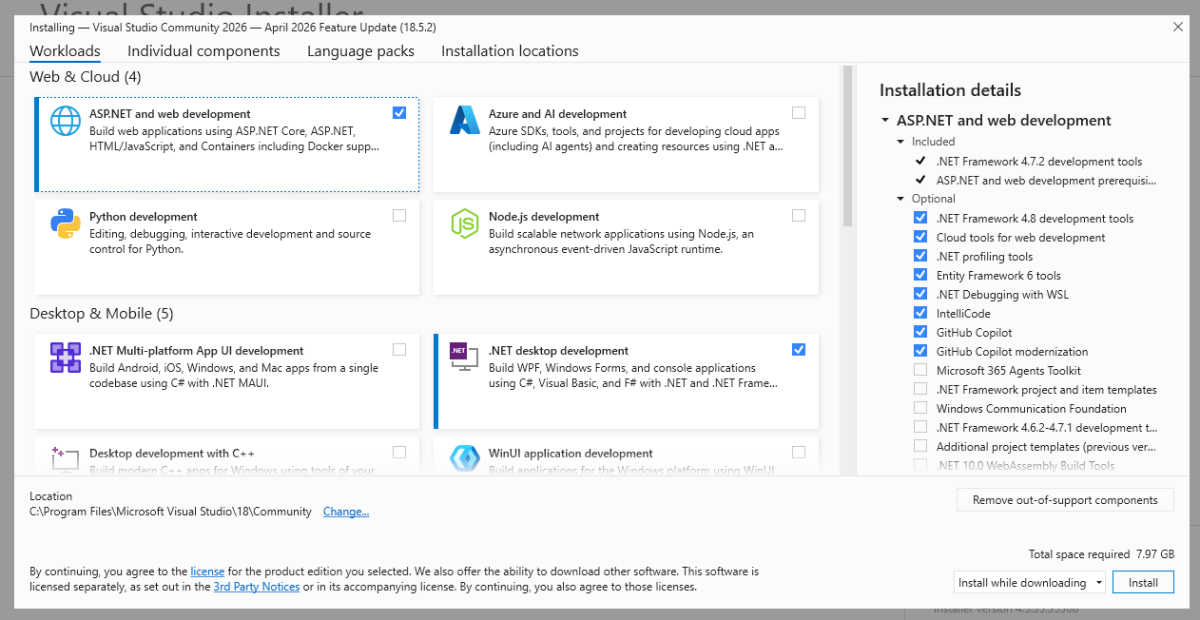
- Run the installer until it reaches to the Workloads page.
- Select these workloads...
- .NET desktop development -- Required for any mod development
- ASP.NET and web development -- Optional. If you want to interact with external websites or Eco's own web server (e.g. Discord's webhooks or extending the API)
- With those workloads selected the page should look something like this:
- Click the Install button. It will take a few minutes to complete installation.
- Open Visual Studio after it installs.
- You may be prompted to sign in:
- Click Skip and add accounts later to continue.
- If you plan to use Github, sign in to make version control easier.
- Finally, it might ask what color theme you'd like. Select your preference and continue.
- Visual Studio is now installed and ready to be used.
The Mod
Once Eco and Visual Studio are installed all of the tools needed to code, build, and run a mod are ready.
Creating a New Project
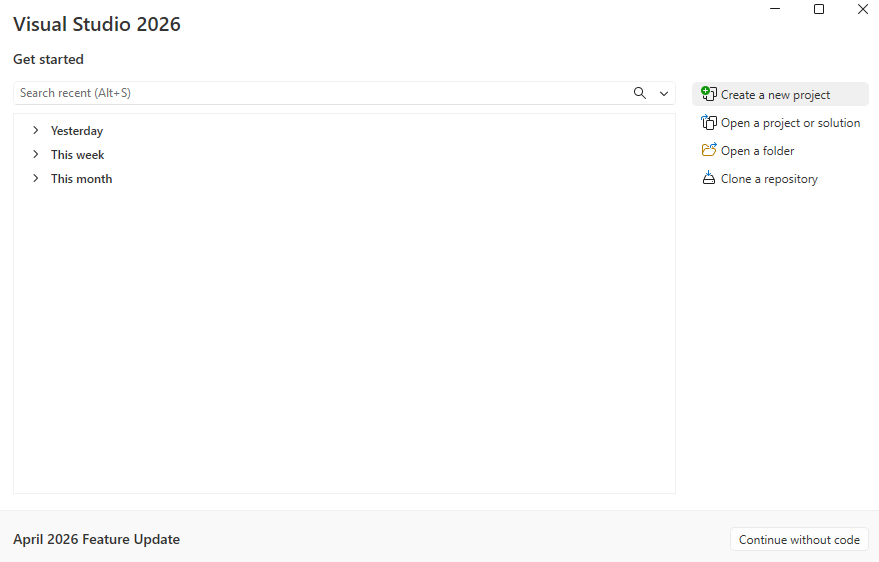
- Open Visual Studio. When it first opens it will show you a dashboard where you can quickly select what you want to do.
- On the right, under Get Started find the Create a new project button:
- A new window will pop-up.
- Select C# Class Library. To find the template, search
C# libraryin the search bar. Select the C# option titled Class Library.
Note: Make sure you select theC#option as there are other options similarly named Class Library.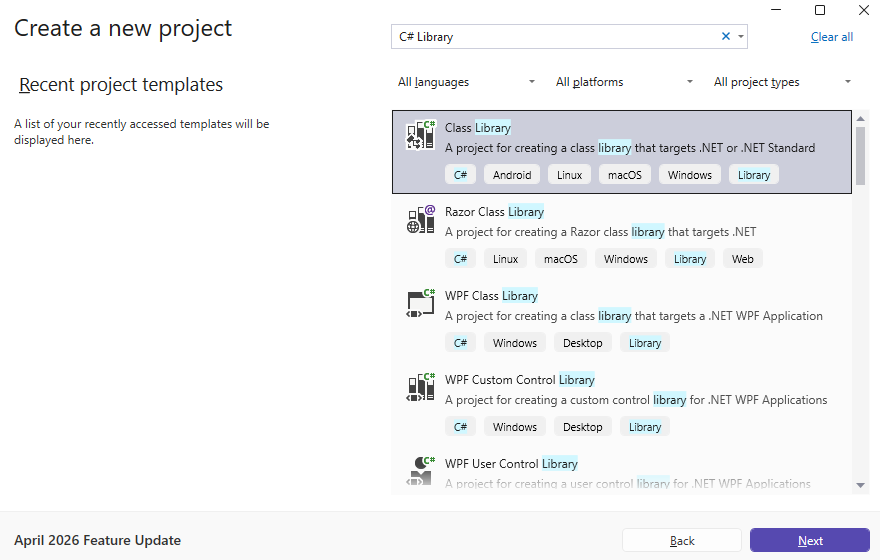
- Click the Next button.
- For Project Name type the name of the mod being created.
- The other options like the Location and the Solution Name do not need edited.
- Leave the box Place solution and project in the same directory unchecked.
- Click the Next button.
- In the Framework drop-down select the same version of .NET Eco uses (as described below). Tip: Eco currently targets .NET 10.0
.NET Version
To confirm the version of .NET that Eco uses:
- Go to the NuGet Gallery
www.nuget.org/packages?q=Eco.ReferenceAssemblies - Find the package with the name Eco.ReferenceAssemblies made by StrangeLoopGames.
- Notice the chip underneath of it with the .NET version it targets.
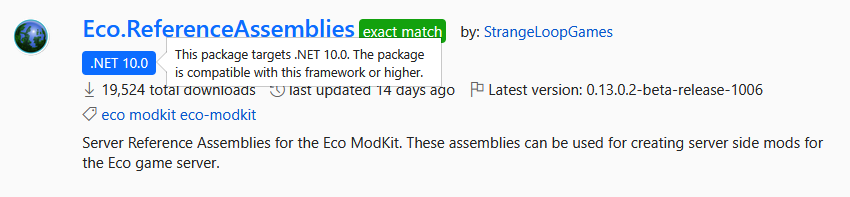
- Click on that search result (shown above).
- A more detailed page is shown. Again, there's chips showing what version of .NET to use:
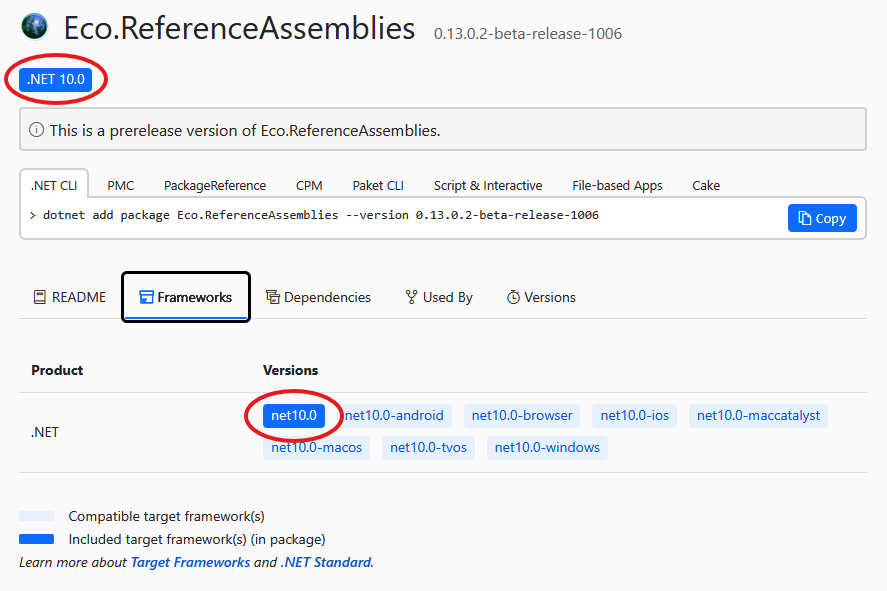
Linking to Eco Assemblies
- Find the Solution Explorer on the right side of Visual Studio. It should look something like this:
Note: If the solution explorer isn't there, open the View menu (top toolbar) and select Solution Explorer.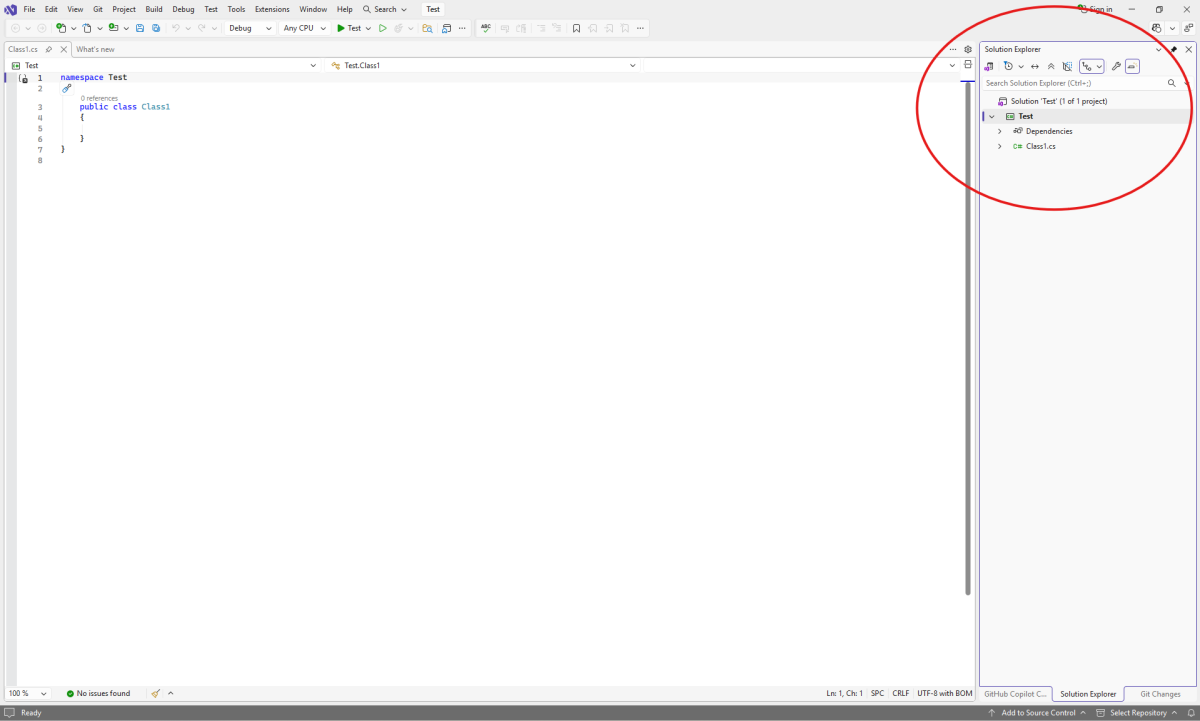
- In the Solution Explorer, find and right-click on the Dependencies item.
- Select Manage NuGet Packages...
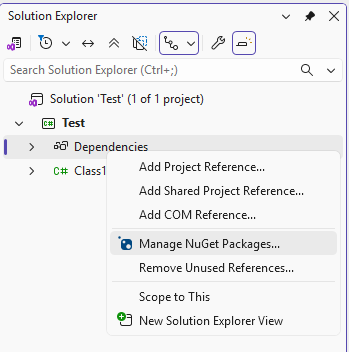
- A NuGet tab will have opened in the editor window...
- Right above the search bar on this tab there's sub-tabs.
- Select the Browse sub-tab.
- Type
Eco.ReferenceAssembliesinto the search bar. - Check the Include prerelease check-box.
- Find the option with the name Eco.ReferenceAssemblies made by StrangeLoopGames.
- Click on that.
- A details panel will show up to the right. It will show the version of the reference assemblies being targeted. By default it chooses the latest and can be left at its default.
- Click the Install button.
- Click the Apply button on the popup to finish adding the references.

The reference assemblies have now been added! When coding VS2022 will provide IntelliSense popups. Try it out by going back to the Class1.cs file and typing Eco. and you will see suggestion pop up. It’s an essential tool for a lot of modders.
Building The Dynamic Link Library (DLL)
Building for Development
Building the mod creates the .dll file that can be used to test with.
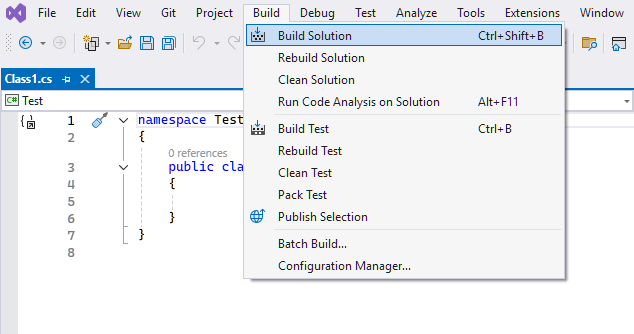
To build, open the Build menu from the top of VS2022.
Select Build Solution. This will produce non-optimized DLL used for testing and development.
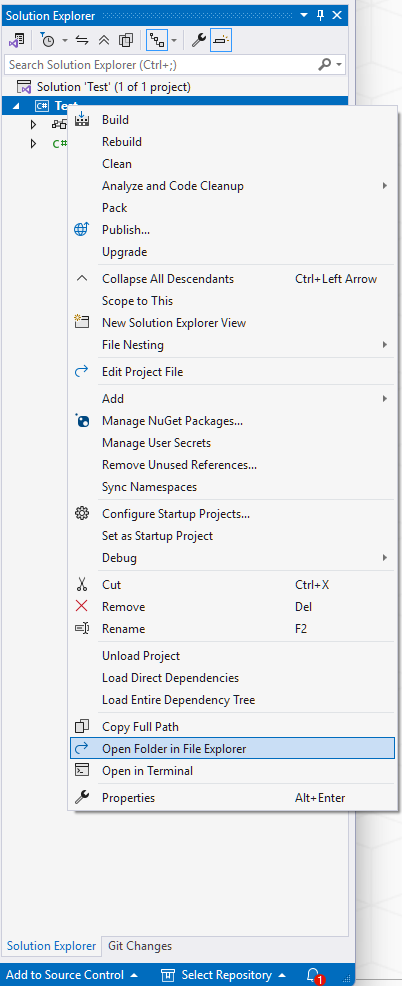
To find the file VS2022 just built, right click on the project in the Solution Explorer.
Select Open Folder in File Explorer.
From here, the mod's DLL will be in the bin/Debug/net8.0/ folder. The file will be named with mod's name, like TheMod.dll.
Copy the mod's DLL file.
Paste it into the folder Eco/Eco_Data/Server/Mods/.
To run a game with that mod create a local world.
The mod should be running. Check the logs at Eco/Eco_Data/Server/Logs/ to verify. Open the most recent log file here.
If the mod was loaded it there will be a line mentioning the file-name of the DLL. If the DLL was named TheMod.dll this is what to look for in the log file:
[13:55:54.815] [4] [ Info] [Eco] Starting ModKitPlugin                             ...
[13:56:27.399] [4] [ Info] [Eco] Starting ModKitPlugin                             ... Finished in 32.584 sec

[13:56:27.439] [4] [ Info] [Eco] Loading mods                                      ...
[13:56:27.439] [9] [ Info] [Eco] Loading TheMod...
Tip: Setup File Explorer to Sort By Date
It's suggested to setup the file view to Details in this folder because it will show the Date Modified for each file.

Additionally, clicking on the Date Modified header sorts all files. Sort it so the most recent is on top and every time the server starts the log file is easily found -- it's the one on top!

Building for Release
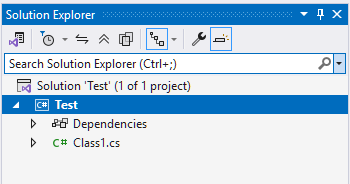
To build for release, click on the mod's project in the Solution Explorer to highlight it.
Then, open the Build menu from the top of VS2022 and select Publish Selection.
Set the target as Folder. Click the Next button.
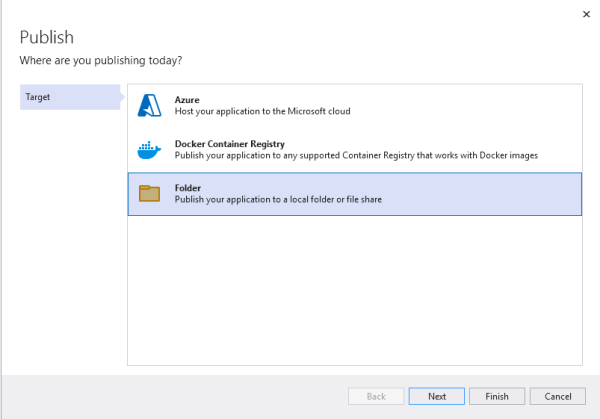
Leave the folder location as default. Click the Finish button.
Click the Close button.
Finally, click the Publish button to start the build.
A green alert will pop up when the build is completed:
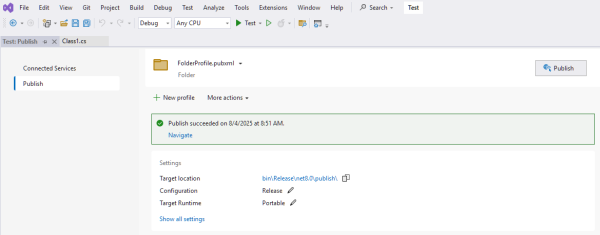
Either use the blue links on this page to find the file or browse the project's files as shown in "Building for Development".
Inside the project, the file will be in bin/Release/net8.0/publish. The file will be named with the mod project's name. For example, TheMod.dll.
Since the reference assemblies are already included in the game, do not worry about the other files here.
To share this mod, the only file needed is the mod's dll -- TheMod.dll.
Post-Build Scripts: Automatic Copy
With a post-build script VS2022 will automatically copy the files each build. It's a very nice feature to have when developing and rebuilding every 5 minutes to test something new.
First, add the variables about where EcoServer.exe is located to the project file.
Right-click on the project in the Solution Explorer and select the Edit Project File option.
Add the properties EcoServerExe and EcoServerDir inside of the PropertyGroup tag.
>>> Tip: By holding shift and right-clicking on a file in the file explorer an old-school menu pops up. Midway down this menu is an option to Copy As Path. Neat!
The project file should look something like this:
<Project Sdk="Microsoft.NET.Sdk">

  <PropertyGroup>
    <TargetFramework>net8.0</TargetFramework>
    <ImplicitUsings>enable</ImplicitUsings>
    <Nullable>enable</Nullable>

    <EcoServerExe>$(EcoServerDir)\EcoServer.exe</EcoServerExe>
    <EcoServerDir>C:\Program Files (x86)\Steam\steamapps\common\Eco\Eco_Data\Server</EcoServerDir>

  </PropertyGroup>

  <ItemGroup>
    <PackageReference Include="Eco.ReferenceAssemblies" Version="0.11.1.13-beta-release-887" />
  </ItemGroup>

</Project>
Next, add the PostBuild property inside the Project tag.
<Project Sdk="Microsoft.NET.Sdk">

  <PropertyGroup>
    ... SNIP ...
  </PropertyGroup>

  <ItemGroup>
    ... SNIP ...
  </ItemGroup>

  <Target Name="PostBuild" AfterTargets="PostBuildEvent">
	<Exec Command='call PostBuild.bat "$(EcoServerDir)" "$(OutDir)" "$(MSBuildProjectName)"'/>
  </Target>
</Project>
Finally create a new file directly inside the project by right-clicking on the project in the Solution Explorer. Select the Add and click on New Item... from the sub-menu.
Use the name PostBuild.bat for this new file.
Open it and put the following in the PostBuild file:
REM reading in arguements to sensible variables
set serverDir=%1
set outDir=%2
set projName=%3

REM removing double-quotes added to variables for concatenation
set serverDir=%serverDir:"=%
set outDir=%outDir:"=%
set projName=%projName:"=%

REM Copy mod dll to Mods dir
set dllFile=%outDir%%projName%.dll
echo Copying mod dll file: %dllFile%
copy "%dllFile%" "%serverDir%\Mods"

REM Copy mod pdb to directory where EcoServer.exe is
set pdbFile=%outDir%%projName%.pdb
echo Copying mod pdb file: %pdbFile%
copy "%pdbFile%" "%serverDir%"
Now try running a rebuild of the project. The output should report copying files and inside the Eco/Eco_Data/Server/Mods folder should be TheMod.dll file
Setting up Debugging
Special thanks to Monzun#0606 on Eco's Discord for helping research the following information. To setup debugging, make sure that the project is setup with the post-build script described above.
Debugging is a powerful tool to a developer and allows the developer to set breakpoints anywhere in the code to stop execution. When execution is stopped the developer can review every variable's value and incrementally continue the code. This is invaluable when tracking down bugs or trying to understand a complex piece of code.
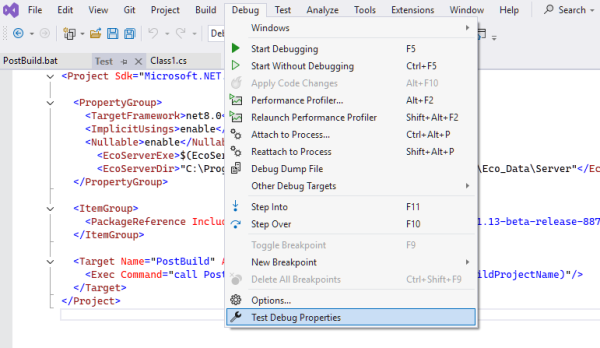
From the top menu, select Debug and click on the option TheMod Debug Properties at the bottom of the menu.
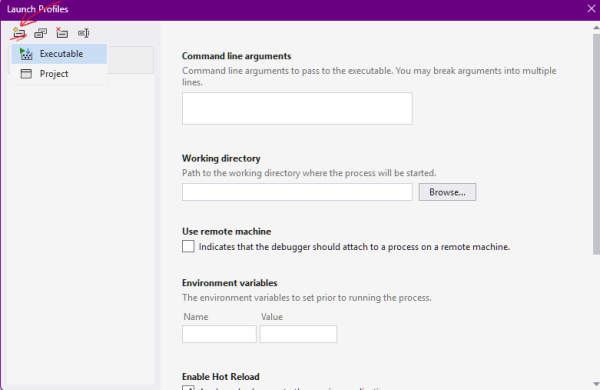
Find the Create a new profile button in the top-left of this new window. Select Executable from the drop-down menu.
Set the Executable field to the full path to the EcoServer.exe file. For example, C:\Program Files (x86)\Steam\steamapps\common\Eco\Eco_Data\Server\EcoServer.exe.
Set the Working Directory field to the full path to the folder containing the EcoServer.exe file. For example, C:\Program Files (x86)\Steam\steamapps\common\Eco\Eco_Data\Server.
A fully configured profile ready to debug Eco on VS2022's launch profile page.
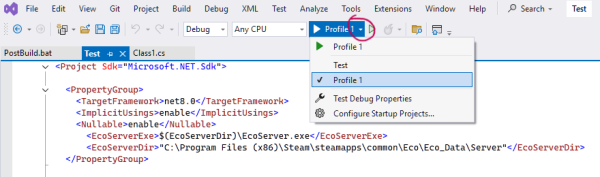
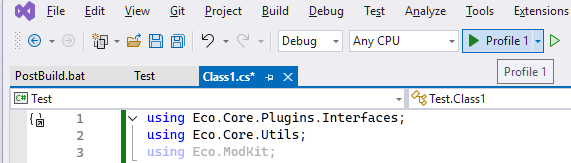
To use this newly configured profile, switch to it by clicking the small arrow to the right of the play icon (see image). Select the newly created profile -- Profile 1.
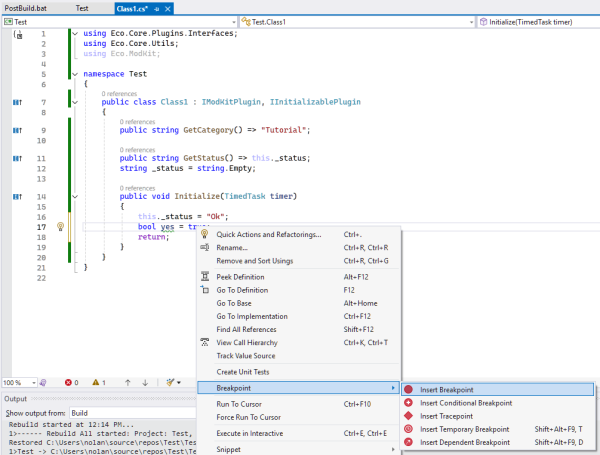
To see how breakpoints work, put the following in Class1.cs file:
using Eco.Core.Plugins.Interfaces;
using Eco.Core.Utils;
using Eco.ModKit;

namespace Test
{
    public class Class1 : IModKitPlugin, IInitializablePlugin
    {
        public string GetCategory() => "Tutorial";

        public string GetStatus() => this._status;
        string _status = string.Empty;

        public void Initialize(TimedTask timer)
        {
            this._status = "Ok";
            bool yes = true;
            return;
        }
    }
}
This code creates a basic plugin, called Class1, that Eco will load and initialize on startup. Eco knows to do this because this class inherits the IModKitPlugin interface (causes it to be loaded) and the IInitializablePlugin interface (causes it to be initialized).
Add a breakpoint to the code by right-clicking on the line bool yes = true;.
Now hit the play button. The server will start and VS2022 will flash back on screen once Eco tries to initialize the mod's plugin.
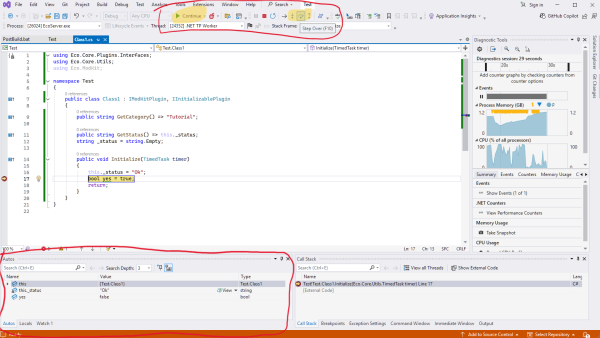
After a little bit the server will start-up and hit the breakpoint set. When it does VS2022 will keep startup from continuing and allow detailed inspection to happen.
In the bottom left (circled in red) is a table of all of the variables within scope. Use this to see what is happening (especially useful in loops!).
At the middle-top (circled in red) are some of the debugger controls. Clicking the highlighted Continue button resumes normal operation. Using the buttons to the right that are highlighted will allow the developer to step through the codes execution to see exactly how each line is performing. Debugging is a deep and rich topic that this guide will not explain further, but there's a great video by Microsoft Visual Studio on YouTube called Basics of Debugging. In that 45 minute video (don't worry there's annotations to jump to just what is interesting) a whole gamut of information about how to use debugging is covered.
Releasing a Mod
Mod.io
mod.io is where creators share their mods with players and others.
To share a new mod here all that is necessary is an account.
Head over to mod.io/g/eco and click Login in the top-right corner.
Finish signing-up with whatever account type you prefer.
Click the Add Mod button in the top-right.
Follow the upload wizard as directed.
Once on the File Manager section, a zip file is needed.
Zip the mod's release dll and any other assets necessary (e.g. Unity bundles) by putting all the files into a folder. Then right-click on that folder and select Compress To... and from the sub-menu select ZIP file.
Upload that zip file. Considering naming it with a version number to help stay organized (e.g. v1). Next release, increase that number by 1 (e.g. v2)
Congratulations on releasing the mod!
Sharing on Discord
Consider posting an ad on the official Eco Discord server. There's a channel for mods called mod-ads. Please read the rules before posting.
Helpful Resources
- Consider learning source control (Git). Completely optional, but can help you keep things organized as development continues.
- Explore Eco’s open-source mod projects for ideas (search on Github "Eco Mods" to find some real-life examples)
- Eco Discord serverhas a channel for mod developers to help one another called mod-dev. Note: Make under the Channel & Roles settings you have the 🛠Yes, I want to see the channels about modding role selected.


