Getting Started with Eco Modding in Visual Studio
Introduction
This guide covers how you could use Visual Studio 2022 as the development environment for your Eco mods. Writing mods for Eco requires you to understand general programing concepts and the C# programming language. This guide won't teach you how to code or how Eco mods work. Instead, it walks you through setting up and using Visual Studio 2022 as a development environment — from creating your project to building and testing your mod.
Have Ready
- A copy of the Eco game installed
- A file explorer and the file-path to "Eco" folder
- At the time of writing, within this folder there's folders like "D3D12" and "Eco_Data". Also, you'll find the "Eco.exe" file here. There are other files and folder here too, but this list is just to help you know what the folder looks like.
Note: Find Folder with Steam
Steam users can find the install folder by right-clicking on the game in your Steam Library:
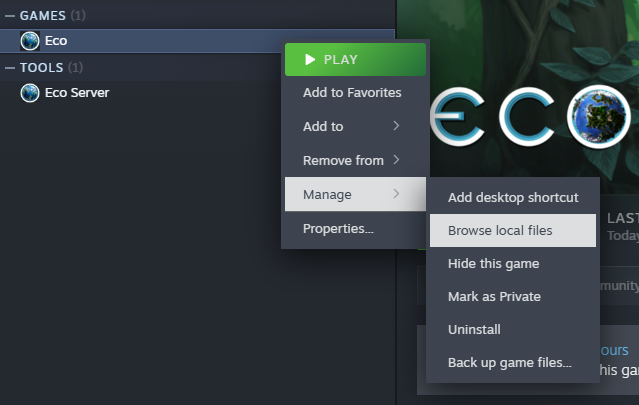
Installing Visual Studio 2022
Visual Studio 2022 (VS2022) has a completely free to use version called the Community Edition. This guide is written assuming that's the version used.
Go to the download page and look for the "Visual Studio Community 2022" download. At the time of writing, the download button looked like:
Start the download by clicking on the Download button.
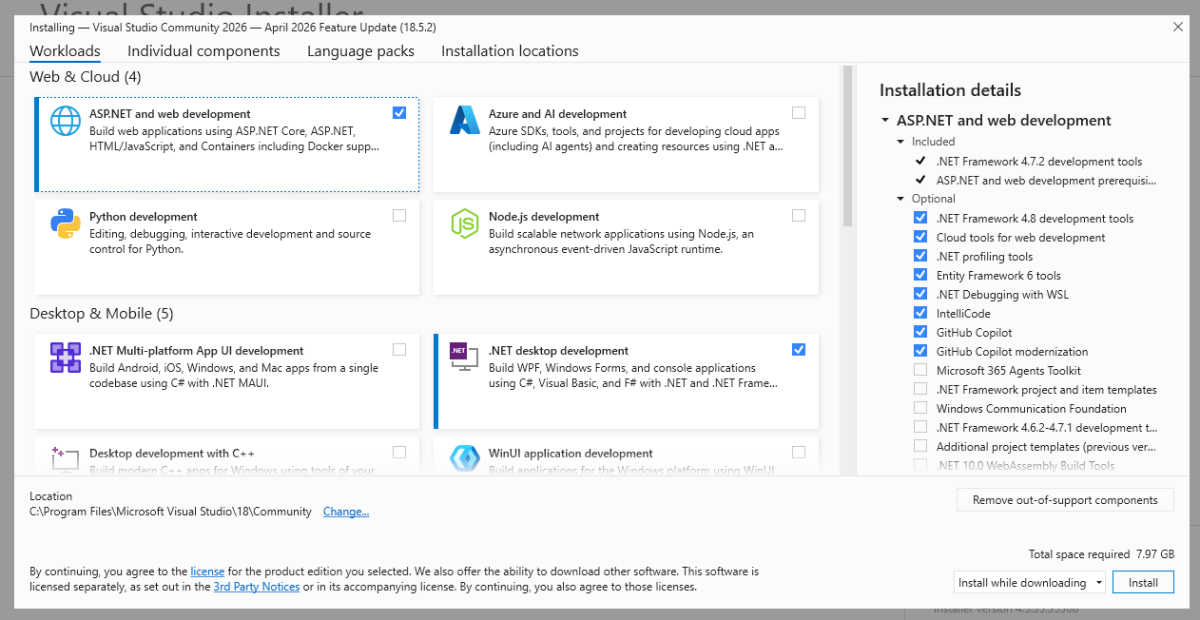
Then, run the installer till this the installer gets a "Workloads" page. On this page, select these workloads:
- .NET desktop development option -- Required for any mod development
- ASP.NET and web development -- Optional. If you want to interact with external websites or Eco's own web server (e.g. Discord's web-hooks or extending the API)
At the time of writing, this is what the Workloads page looks like with those options selected:
Click "Install" and let it complete your installation. By default, it should launch the application after it installs.
It will ask you to sign in. You do not need to and can completely avoid this by clicking the "Skip and add accounts later." option in tiny text below the buttons. However, if you plan to upload your mod to Github VS2022 does have integrated support for that. So consider signing in with GitHub to make that process easier.
This guide is continuing as if the "Skip and add accounts later." option was selected. Finally, it might ask what color theme you'd like. Select your preference and continue. That completes the installation!
The Mod
With Eco and VS2022 are installed all of the tools needed to code, build, and run a mod are ready!
Creating a New Project
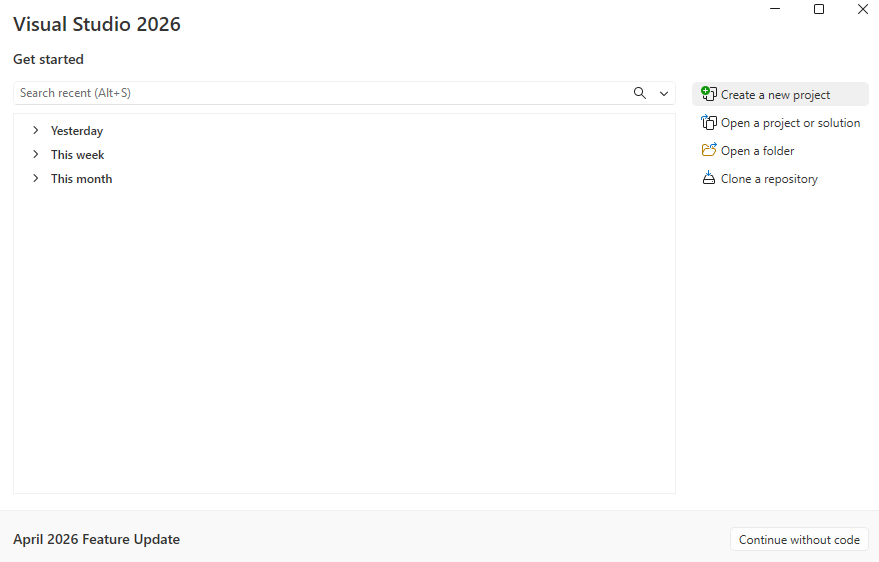
When VS2022 first opens it will show you a dashboard where you can quickly select what you want to do. On the left, are any recent projects opened. There won't be any if this is the first time installing it. On the right there will be a few options, from here select the "Create a new project" option.
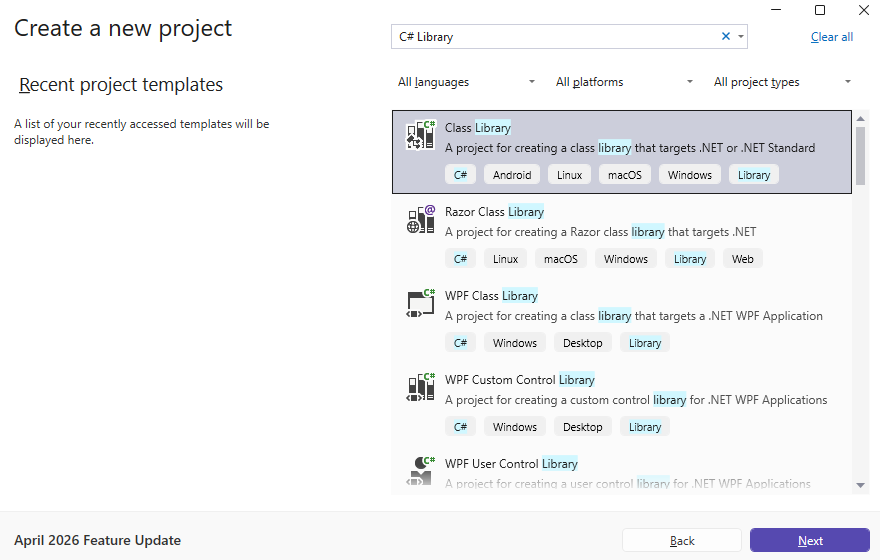
Now, it's time to go through the new project wizard. First, the wizard asks what kind of project is being made. To mod Eco we need to make a C# class library.
To find the template, search "C# library" in the search bar. Select the C# option titled "Class Library". It's important to pay attention to the icon and chips below the title and description. Make sure you select the "C#" option.
Linking to Eco Assemblies
Structuring The Files
Building The DLL
Releasing On Mod.io
Practical Guides
How to write to log file
Players Interactions
Game Messages
broadcast, side-message, on-screen, notification
Player Choices
- Go through popups types
Setting up Debugging
Managing Dependencies
TODO: Explore how to package external libraries with this mod. See how MightyMooseCore uses it's "Dependencies folder. How does it avoid having the engine load this or not crash at start?
Where to Next?
- Where to learn modding logic (Eco Modding Wiki, Discord, sample mods)
- Consider source control (Git)
- Explore Eco’s open-source mod projects for ideas


